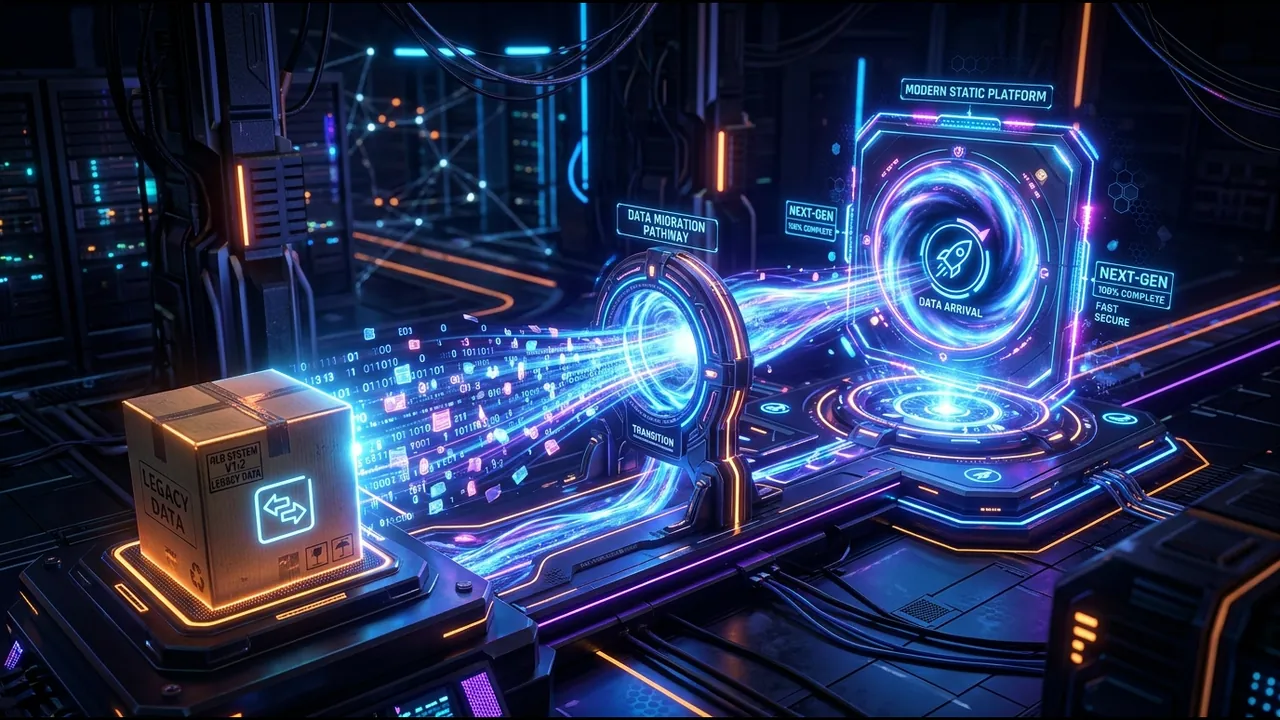
Once you have your WordPress XML export, the next step is transforming that data into a blazing-fast static site. ZeroPress handles this complex process automatically, recovering your posts, pages, and media assets.
In this guide, we’ll walk you through the seamless import process using the ZeroPress Dashboard.
The ZeroPress Import Philosophy
Unlike traditional import plugins that often fail mid-way or clutter your database, ZeroPress uses a serverless, decoupled approach.
- Fast Uploads: Direct-to-storage uploads bypass traditional server limits, handling gigabytes of XML and media files effortlessly.
- Clean Transformation: Our custom migration engine parses the XML, strips out WordPress-specific shortcodes, and converts everything to clean, standard Markdown.
- Asset Recovery: We don’t just migrate text. ZeroPress downloads and optimizes your images, linking them correctly in your new Markdown files.
Step 1: Access the ZeroPress Dashboard
Log in to your ZeroPress account. If you haven’t created one yet, start your free trial. The dashboard is your control center for the migration process.
Step 2: Upload Your Data
In the dashboard, locate the Transformation Engine section.
- Select Theme: Choose one of our optimized themes (e.g., Chirpy, Minimal Mistakes, or Beautiful Jekyll).
- Upload XML: Drag and drop the
.xmlfile you exported from WordPress in the previous step. - Upload Media (Optional but Recommended): If you exported an archive of your
wp-content/uploadsfolder (here’s how), upload the.zipfile here to integrate your images perfectly.
Step 3: Initialize Transformation
Click the Initialize Transformation button.
Behind the scenes, ZeroPress orchestrates a powerful cloud pipeline:
- Your files are securely stored.
- A dedicated processing container spins up.
- The Python-based migration engine processes every post, applying the necessary front matter for your chosen theme.
- High-resolution images are converted to WebP for maximum performance.
Step 4: Download and Verify
The process usually takes between 30 seconds to a few minutes, depending on the size of your site. Once completed, a Download Migration button will appear.
Download the generated .zip file. This contains your brand-new, static Jekyll site, complete with all your content perfectly formatted in Markdown.
What’s Next?
You now have a portable, lightning-fast static site. The next logical step to ensure security and version control is to Create a Private GitHub Repository to host your new code.